ProZ.com frequently asked questionsProfiles Main Main
1 - Profiles: general Video tutorial: "Getting the most out of your ProZ.com profile" 1.1 - What types of profiles are available at ProZ.com? When registering at ProZ.com you can create a profile of any of the following account types:
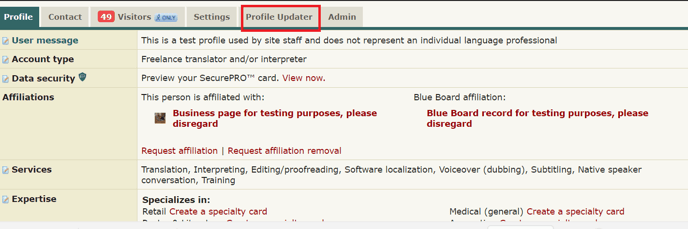
1.1 - How can I set my account type? You can set your account type by clicking on Profile updater in your main profile page, choosing among the profile types available and clicking on Save and update profile at the bottom of the page. 1.2 - Which account type should I choose?
1.3 - At the time I registered I selected a certain account type, but now I think a different account type will reflect my current situation more accurately. Can I change my account type? Yes, you can edit your account type to suit your preferences from the ProZ.com Account section of your Profile updater. Make sure to click on Save and update profile once you are done. 1.4 - I am listed as an agency but I also work as a freelancer, should I have two profiles? No, you don't need to have two profiles. Many agencies in the site are listed as both agencies and freelancers. To be recognized as both, all you need to do is go to your Profile updater and select the option Freelancer and outsourcer for Account type. 1.2 - How do I begin completing my new profile? Go to your Profile updater to update your profile, including contact information, financial information, and more. Make sure to click on Save and update profile once you are done. 2.1 - How can I edit/update the information in my profile? There are two ways of editing the information in your profile:
2.2 - Why are certain fields classified as required or encouraged? The classification of a profile field as required or encouraged (as opposed to simply available) corresponds to the possible contribution of that field to the goal of helping to ensure that a profile owner gets the most out of ProZ.com. 1.3 - What is my profile ID/number? Your profile ID/number is the last number at the end of your profile URL. To see it go to My profile and check the last number shown in the URL of your profile box at the top left of your profile. To create a profile simply register for free at www.proz.com/register 3.1 - What link should I provide my customers to direct them to my ProZ.com profile? You can find this information in your own profile, above your picture and username. 3.2 - Can I link to my ProZ.com profile from my personal website? Can I use the logo when I do so? Yes. You can find a comprehensive description of how to link to your profile in this page. 1.4 - How do I enter my first and last names in my profile? To enter your real name in your profile, visit the ProZ.com account section of your Profile updater and enter your first and last names in the Contact first name and Contact last name write-in fields respectively. Finally, click on Save and update profile at the bottom of the page to save your data. 4.1 - How do I hide or show my real name in my profile? You can chose to show or hide your real name in your profile at any time. Note that name changes may take up to one hour to become effective. 4.2 - Can I show my real name to outsourcers and my username to other users? Yes, all you have to do is enter your real name in your profile and choose the option to show it only to outsourcers in your Profile updater. Please note that this setting is based on account type, so your real name will not be shown to outsourcers who are not logged in, or those who have not properly classified their profiles. 4.3 - I do not want my real name to show in search engines. How can I change this? Profiles, similar to the forums and KudoZ, are public. This means that they can be indexed by search engines and displayed as part of search results. If you have chosen to show your real name as your site name (profile name) it is then possible that your real name is then shown as part of search engine results. If this is the case, and you want your name to stop showing in search engines results, start by changing your site name (profile name) at ProZ.com. To do so, go to your Profile updater and change your site name settings by selecting Show username, as used in login. Remember to click on Save and update profile at the bottom of the page. Note that this change may take a few minutes to become visible in your profile page. 4.4 - I changed my site name but search engines still show the old name. Why? When you chose to display a given site name (real name or username), it may be cached by some search engines. Thus, if you decide to change this name later, or to change visibility permissions for your site name, it will take a certain period of time for search engines to update their cache and stop showing the old profile or site name. 1.5 - Can I control the visibility of the information in my profile? Yes, you can control what profile visitors see in your profile in two ways, depending on the type of information you would like to show or hide:
5.1 - How do I change visibility settings for the Blue Board entries made by this user section of my profile? You can chose to hide your clients names or location by selecting the None visibility option for these areas from the Feedback section of your Profile updater. 1.6 - How can I see my profile as visitors would see it? To view your profile as any visitor would view it, simply click on Force visitor view at the top of your profile page. To go back, just click on Return to owner view. 1.7 - How can I change the title displayed in my profile? In order to add/edit the title displayed in your profile, go to the Settings tab and select the Search engine settings section. In this way you can edit the title displayed in your profile or leave this field blank to use a ProZ.com search engine optimized title. Please note that search engine indexes only show up to 60 characters. 1.8 - Can I add a tagline to my profile? Yes. You can add a short phrase that sums up your most important attribute as a service provider or outsourcer (or tagline) to show below your site name in your profile and in the directory. To enter a tagline, click on the small edit icon next to Edit your tagline, below your profile name. This will take you to the Marketing and promotion section of your Profile updater. Type in your tagline and then click on Save and update profile at the bottom of the page to save the changes. 1.9 - Can I add a user message to my profile? Yes. To add a user message to your profile, simply click on the small note pad next to User message in your profile main page, enter your message and click on Save. Note that user messages no longer support HTML tags. 1.10 - What kinds of content (text, HTML, etc.) can I put in my profile page? Only plain text and basic HTML can be used in profile pages. JavaScript, HTML tables, and other advanced techniques will usually not work. 1.11 - Can I use HTML in my personal information (first name, last name, username, etc.)? No, only plain text may be used in your personal information. HTML characters such as < or > will be converted to plain text. This also applies to your keywords and tagline. 1.12 - Can I control the language in which visitors see my profile? Yes. Go to the Settings tab in your profile, and click on Search engine settings. Under the default language, choose the language in which you would like visitors to view your profile and check the box to force that view. Any visitor who comes from another site and is not logged in to ProZ.com will automatically see your profile in the language you chose. 1.13 - Can I accept payments from my profile? Yes. You can accept payments directly from your profile using ProZ*Pay. You can also use other methods, as detailed in the related FAQs. 13.1 - How can I accept PayPal payments through my profile page? First, you need to set up a Paypal account. Go to PayPal and follow their sign-up steps.
13.2 - How can I accept Skrill payments through my profile page? Go to your Profile updater, click on the Financial section, and then enter the email address you used to set up your Skrill account in the Skrill email space provided under Payment methods. Make sure to click on Save and update profile once you are done. 13.3 - Can I accept other payment methods through my profile? Please contact the ProZ*Pay team or submit a support request to set up your bank account or other pay-out methods and receive payments directly through ProZ*Pay. 1.14 - Can I receive files through my profile? Yes. You can receive files sent to you through your profile page via the Send file option at the top of the addressee's profile page. 1.15 - How do I report my translation education in my profile? To report your translation education, go to the Professional history section of your Profile updater and select the highest translation-related degree you have earned from the drop-down menu and then specify the issuing school. Finally, click on Save and update profile to save this new information. 1.16 - How do I report years of experience in my profile? To report your experience in translation, go to the Professional history section of your Profile updater, specify your years of experience and the year in which you started working as a professional translator and then click on Save and update profile to save this information. 1.17 - I need help with completing my profile. Who should I contact? Please watch this video tutorial and try to apply it to your profile. 1.18 - How do I delete my profile? You can delete your profile by going to the Settings tab from your profile page. Once you've arrived to your settings tab, you will need to scroll down and click on the link that reads Close account which then will enable to remove your profile entirely. Once you remove your profile, email notifications will automatically stop. 2 - Profile picture 2.1 - How do I upload a profile photo or image? The easiest way to upload or update your profile photo is by clicking directly on the photo box on your profile. This will take you to the section of your Profile updater designed for that purpose. You will be able to take a photo with your webcam or upload a file up to 1MB from your computer. If your picture is not square, you'll be offered the option to crop it. 2.2 - Is there a limit to the kind of profile image I may use? The image(s) used in a profile should not be political, misleading or offensive in nature, and should in general respect the site's scope. Keep in mind that the image you use in your profile represents you professionally. 3 - Contact information 3.1 - How can I start completing my contact information? To start completing your contact information, go to the Contact section of your Profile updater and enter information for the following fields:
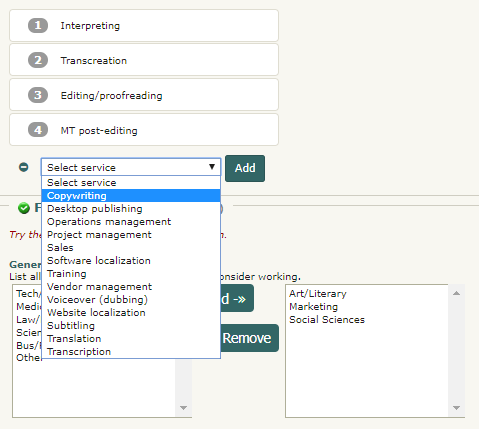
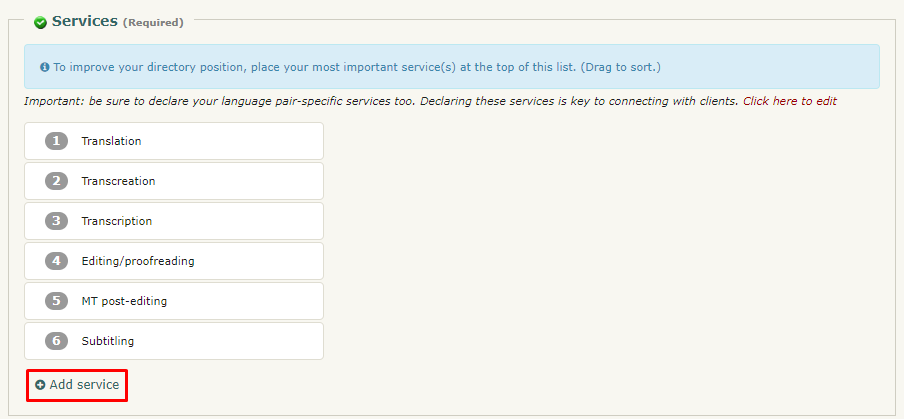
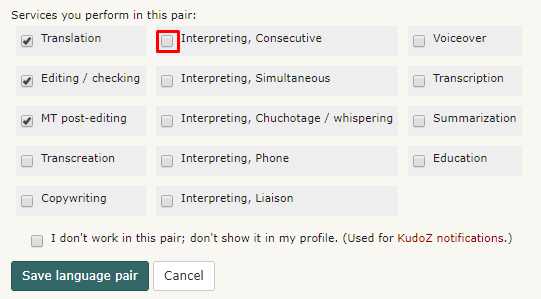
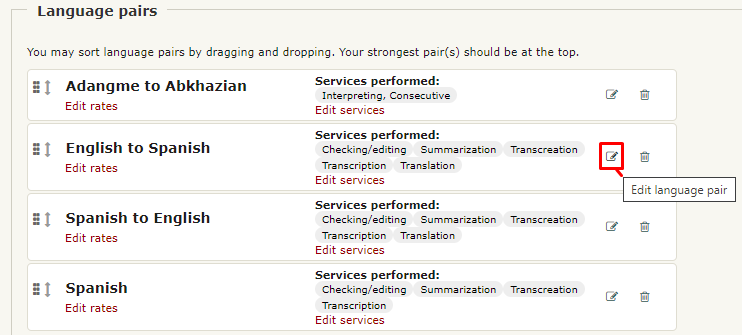
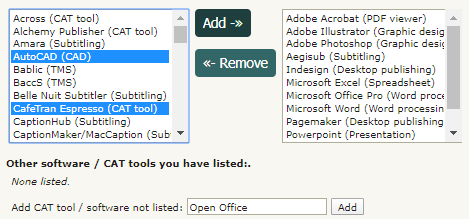
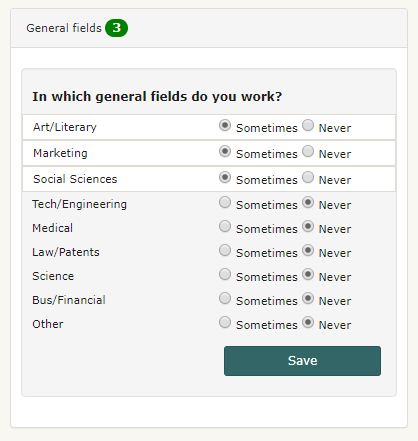
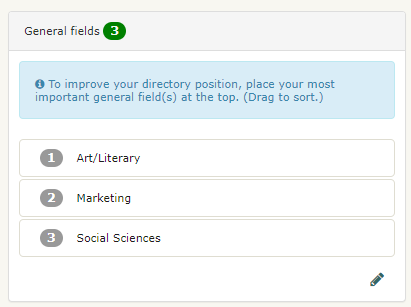
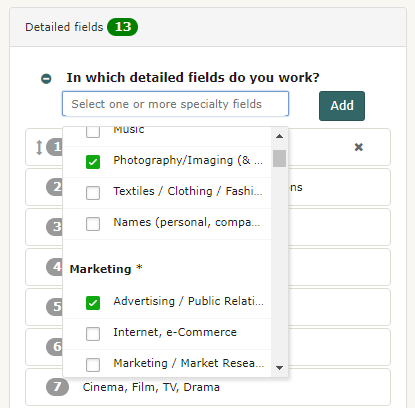
Once you have entered information for all these fields, simply click on Save and update profile at the bottom of the page to save your changes. Note that you can set visibility permissions for your contact information by using the options available in the Show to drop-down menu next to each field. You can also decide not to enter the information, in which case you need to indicate it so the area will be marked as complete. Click or check the I don't want to enter... option.  3.2 - I have edited my contact info but the quick profile does not show it. ProZ.com utilizes more than one web server. When you uploaded new information in your Profile updater, it can take between several minutes and a half hour for it to be copied to all the web servers. During this time, you may notice a blank or outdated data where you entered the information. Please give it some time before submitting a support request. 3.3 - Can I make my email address visible in the Contact section of my profile? No. This is designed as a means of security, to protect your address from spammers and scammers, and is why the profile email sending function (the little envelope at the top of your profile) is used. If you choose to publicly post your email address, you may do so for example in the About me section or CV of your profile. Please be aware of the risks of doing so. 3.4 - How do I add Skype to my profile page? You can add Skype to your profile by going to your Profile updater and editing your Contact information. 3.5 - How can I set my location in the map? You can enter your location on the map by visiting this page and following the steps described. You can also edit your location by clicking on the edit icon below the map image in your profile. 3.6 - How can hide or show the map in my profile? You can show or hide the map in your profile by clicking on the visibility toggle 3.7 - Can I control the online status shown in my profile? Yes. If you don't want your online status to show (via the P icon at the top of your profile page), you can choose to hide it from this page. You can also add, delete or hide other instant messaging icons in your profile. Remember that showing your online status can be a useful way of letting people you work with know you are available via profile mail or ProZ.com Instant Messaging. 3.8 - ProZ.com instant messenger online status is not showing in my profile. Why? If the small P icon that shows your online status and serves as an instant messenger tool is not showing in your profile, check your instant messenger settings to make sure you have chosen to show your online status (if so, the link option next to ProZ.com Online Status should read Hide). 3.9 - How do I add a Twitter feed to my profile page? You can add a Twitter feed to your profile in your Profile updater, under the Contact tab. 4 - Languages 4.1 - How do I report a new language pair in my profile? To report a new language pair in your profile go to the Languages section of your Profile updater. First, make sure that you have declared all of the languages you speak, selecting them from the drop-down menu at the top of the page. 4.2 - How do I change the order of language pairs reported in my profile? To change the order of language pairs reported in your profile, go to the Languages section of your Profile updater, then click and drag each pair to the position you would like them to appear in your profile and click on Save and update profile at the bottom of the page to save the changes applied. 4.3 - How do I enter languages of interest? To enter a language of interest in your profile, just enter a new language pair from the Languages section of your Profile updater as you would normally do (following the steps described here). Before saving the pair, check I don't work in this pair; don't show it in my profile. Select this last option and finally click on Save language pair to save the changes applied. 4.4 - How do I report my native language(s)? You can report your native language or languages (with a maximum of two) from the Languages section of your Profile updater. In the Native language field, select your native language(s) from the menu available to the left and click on Add. Then, simply click on Save and update profile at the bottom of the page to save your changes. 4.5 - Can I report my language variants? 5.1 - How can I report my language variants? To report your language variants, head to the Languages tab of your Profile updater. When you hover over each language, you'll see a pencil-shaped button that will allow you to add variants. Reporting your variants is optional and will not affect your profile completeness. 5.2 - My language variant is not listed. If your language variant is not listed, please submit a support request detailing the variant that you want to add. 5.3 - Can job posters filter by this information? No, at this time it is not possible to use language variant filters in the job posting form. However, it is now possible to filter directory searches by language variant, from ProZ Find™. 5.4 - I am proficient in multiple variants of my language, which should I add? You should add those variants that you are most comfortable with. In many cases these will be the ones that you have worked with the longest, but may in fact be those that you currently use on a daily basis. You can indicate your level of familiarity from a drop down menu when adding or editing your language variants. 4.6 - Подтверждение родного языка сайтом ProZ.com 6.1 - Я хочу указать свой второй родной язык, либо я допустил(а) ошибку при введении моего родного языка(ов). Пожалуйста, отправьте запрос в службу поддержки для получения помощи, сообщив причину, по которой вы желаете повторно указать свои родные языки. 6.2 - Что такое аккредитация носителя языка сайтом ProZ.com? Аккредитация носителя языка – это знак, который обозначает, что член ProZ.com является носителем данного языка. Для того чтобы увидеть дополнительную информацию, нужно навести курсор на знак или нажать на него. 6.3 - Что означают иконки разного цвета? Золотистая иконка ProZ.com Носителя языка 6.4 - У меня один родной язык. Как мне его подтвердить? От членов ProZ.com с одним указанным родным языком требуется просто указать этот язык. Если вы уже указали свой язык до перехода в Профессиональное членство, отправьте запрос в службу поддержки с пояснением, что желаете повторно указать свой родной язык для его подтверждения. 6.5 - Как получить аккредитацию для более чем одного языка? Если вы войдете в раздел «Языки» на своей странице «Обновление профиля», то вы увидите справа опцию «Запросить подтверждение». 6.6 - How many native languages can be reported? At the time being, only two native languages can be reported. There are no immediate plans to add a third language. 6.7 - Какое определение носителя языка используется? В системе подтверждения родного языка отсутствуют критерии для определения носителя, члены сайта, участвующие в процессе подтверждения, определяют его по своему усмотрению. Речь заявителя будет признана произнесенной на родном языке, если несколько других членов ProZ.com, носителей языка, посчитают ее таковой на основе своих собственных критериев. Если заявка на подтверждение родного языка будет отклонена, заявитель сможет ознакомиться с комментариями экзаменаторов, поясняющими причины, по которым его речь была признана или не признана произнесенной на родном языке. 6.8 - Является ли подтверждение родного языка сайтом ProZ.com показателем уровня компетентности переводчика? Абсолютно нет. При отборе письменного или устного переводчика родной язык является только одним из факторов, на основе которых заказчик может сделать выбор. Обычно это не является самым важным фактором. 6.9 - Сколько стоит подача заявки на подтверждение родного языка сайтом ProZ.com? Отсутствует плата за подачу заявления в систему ProZ.com для Подтверждения родного языка. Эта проверка выполняется сообществом, и любой пользователь, который проверил три и более заявки, может подать свою. Подписчикам на членство варианта Plus не требуется проверять других заявителей, чтобы подать свою заявку. 6.10 - Моя заявка на подтверждение родного языка находится на рассмотрении. Сколько времени требуется для выполнения проверки? Система подтверждения родного языка приводится в действие сообществом. Это означает, что рассмотрение заявок на подтверждение зависит от желания и готовности членов сообщества выполнить их анализ и предоставить свой отзыв. Для очень небольших языковых сообществ этот процесс может потребовать относительно длительного времени. 5 - Services 5.1 - How can I report the services I offer? To report the services you offer, simply go the Services & offerings section of your Profile updater and select the services you offer from the list to the left and click on Add. Once you have added your services to the list to the right, click on Save and update profile at the bottom of the page to save your services. As with all sections of your profile, you can drag-and-drop your reported services to list them in order of relevance. 5.2 - How do I add a monolingual service? Some users may choose to add monolingual services in their profiles, including checking/editing, voiceover, education, transcription, etc. To do this, simply go to the Languages section of your Profile updater, click on Add new pair and choose the same language in both the Source language and Target language drop-down menus. 5.3 - Why is it important to report services offered? Your profile is your public face at ProZ.com. It serves as your business card and directory listing, and is the first impression of you that colleagues and potential clients will have when they find you at ProZ.com. In addition to finding your profile via ProZ.com, there is also a good chance that potential clients will find your ProZ.com profile when seeking language professionals using search engines such as Google or Yahoo! —provided that you optimize your profile accordingly. So, by reporting in your profile the services you offer, you increase the chances of showing as part of search results when potential clients search by keyword (eg. translation, interpreting, training, etc.). 5.4 - Why am I not listed as an interpreter/proofreader/copywriter? Please check that you have added all your services to the Services & offerings section of your Profile updater. To improve your directory position, place your most important service(s) at the top of this list. Make sure to click on Save and update profile once you are done. 5.5 - How can I report software / CAT tools I use in my profile? You can report any software or CAT tool you use in the Services & offerings section of your Profile updater. Just select a software from the list available to the left in the Software / CAT tools section and click on Add. You can select multiple items by using the keys CTRL and shift. Once you have added all the software tools you want to report to the list on the right, just click on Save and update profile at the bottom of the page. If the CAT tool or software you want to list is not provided, use the Add CAT tool / software not listed field to report such tools. 5.6 - I am SDL Trados Certified. How do I show it on my profile? If you are SDL TRADOS Certified, you can show it in your profile under the Services tab. To do so, you must first add SDL Trados to your list of supported software in the Services tab, following the instructions in this FAQ. When the page refreshes, you will see an option to show your SDL Trados Certification on your profile. By adding the link to the certificate in your SDL account, you'll give clients the option to click on it and corroborate your certification. 6 - Fields of expertise 6.1 - How can I add and edit my fields of expertise in my profile? To report fields in your profile, go to the Services & offerings section of your Profile updater. To report General fields simply select a field from the list to the left and click on Sometimes to have the chosen field(s) added to the list of general fields that you work in. Once you have checked all the general fields you want to report, just click on Save. To edit your fields, click on the pencil-shaped button at the bottom right corner, and remove them by marking Never. 6.2 - Can I change the order of fields reported in my profile? Yes, you can change the order of specialty, working and interest fields you have reported in your profile from the Services & offerings section of your Profile updater. Just click on each field and drag it to the position you would like it to occupy in the list of fields. Remember to click on Save order at the bottom of the list after moving each field. 6.3 - Как систематизированы области компетенции на сайте ProZ.com? Для систематизации заказов на перевод, терминологических вопросов, личных областей компетенции, глоссариев и т.п. на сайте ProZ.com применяется несколько структур категорий. Основных структур две: общие категории ProZ.com (их 9) и расширенные категории ProZ.com (более 100). 6.4 - What are the detailed categories of expertise? The detailed categories are a subject classification system developed based on the keywords used in a free entry box to describe the fields of KudoZ questions asked.
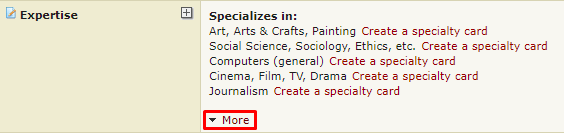
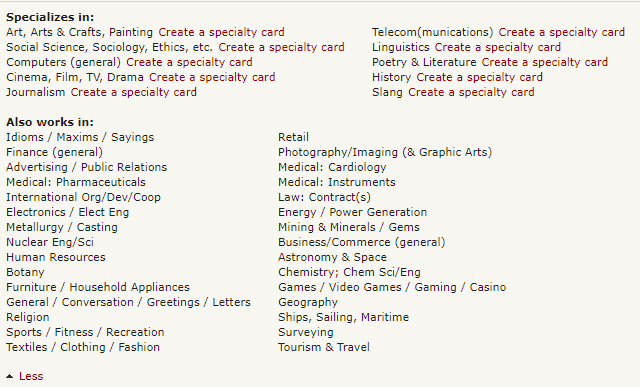
All users are advised to enter detailed fields of expertise (working and interest) in their profile pages, in the expertise section. Also, whenever possible, a detailed category should be entered at the time a new KudoZ question is posted. Furthermore, users with a sufficient number of KudoZ points can be given the right to classify questions which the asker has not classified with detailed categories, and are encouraged to do so. These users are called KudoZ editors 6.5 - Как были определены используемые области? Как общие, так и расширенные группы "предметов" созданы по итогам анализа характера использования сайта. Общие категории - ведущие общие категории, в которых за рассматриваемый период были размещены заказы на перевод. Расширенные категории - ведущие расширенные категории, в которых за рассматриваемый период были размещены термины KudoZ. 6.6 - Области кажутся нецелесообразными. Классификация областей, используемых на сайте ProZ.com, отражает характеристики рынка. Составление списка на основании строгого научного анализа не входило в намерения сайта. 6.7 - Why is my specialty not available? If you can't find your specialty, please submit a support request indicating which one you would liked added and then we will add it to our task list for development. Note that it is unlikely that a category would be added based upon a single request. But requests for additional categories, coupled with ongoing review of site usage patterns, will determine future changes to the category structure. 6.8 - Почему некоторые категории указаны дважды, например, cars (автомобили) и automotive (автомобильный)? За рассматриваемый период многие пользователи обозначали области этими словами. Чтобы не разделять аналогичные данные (к примеру, термины KudoZ), эти идентичные (или почти идентичные) категории расположены в базе данных в связке. Не важно, указываете ли вы область вопроса cars (автомобили) и automotive (автомобильный); вопрос в любом случае будет определен и показан совершенно одинаково. 6.9 - How many general, specialty, and working fields can I enter in my profile from the Fields of expertise page? You are allowed to enter up to 10 specialties, 30 working fields, and up to 8 of the 9 general fields available. Only 5 or less from the general field will appear on your profile page. However all your specialty fields will appear on your profile page, and your working fields will appear collapsed, available under a More button. 6.10 - What is the difference between Specialty fields and Working fields? Specialty fields are also working fields, but they are fields in which you specialize or do your best work. If your top area is, say, medicine, you should make sure it is listed as your top specialty, and you should consider accompanying this with sample translations related to medicine in your profile. Outsourcers can look for language professionals by specialty fields, so this can be important in meeting potential clients. 6.11 - Does the order of my specialty fields affect my directory positioning? The ten fields that you have reported first will be considered your specialty fields. The following thirty fields will be considered your working fields, and the remaining fields will be considered interest fields. In directory searches for specialists in a field, those who have reported that field in their top-ten will have preferential positioning over those who marked it as working. Those who placed it between the 11th and 40th spots will in turn be given a priority placement over the users who reported it as interest. 6.12 - Why can't I enter more than 10 specialty fields (and 30 working fields)? It is possible to select 10 specialty fields and 30 working fields, which means you may appear in the directory for a total of 40 fields. While we recognize that there are translators who are able to work in more fields, users are asked to select their best 10 (and after that, their next-best 30). ProZ.com is based on the idea of specialized translation and this system is designed around the idea that one can only be a specialist in so many fields at once. 6.13 - Why aren't my detailed fields of expertise displayed on my profile page? Only the specialization fields that you select as specialty and working will appear on your profile page —that is, the first 40 fields you selected. 7 - Credentials 7.1 - Что такое "документ об образовании"? Различные ассоциации, школы и другие организации по всему миру выдают переводчикам документы, которые в общем случае упоминаются на ProZ.com как "документы об образовании". Это могут быть "аттестаты", "дипломы" или другие документы. 7.2 - Как документы об образовании используются на ProZ.com? Участники могут сообщить о получении таких документов об образовании на своих страницах профиля. Соответственно, работодатели могут ограничить список рассылки предложения о работе среди тех участников, которые указали наличие документа об образовании. (Они не могут ограничить список рассылки среди участников с заверенными документами об образовании). Кроме того, при поиске по базе данных может быть включён фильтр поиска переводчиков, которые сообщили о наличии, или чьи документы об образовании проверены. 7.3 - Как мне сообщить о моих документах об образовании? Чтобы сообщить о документах об образовании, во-первых, перейдите на 7.4 - Должен ли я заверять мои документы об образовании? Работа фильтра документов об образовании, который используется в разделе «Работа», зависит только от того, указали ли вы наличие таких документов. Подтверждение ваших документов об образовании дополняет ваш профиль и служит для потенциальных клиентов дополнительной гарантией того, что вы являетесь компетентным переводчиком. Пожалуйста, обратите внимание, что, если вы укажете наличие у вас документа об образовании, сотрудники сайта могут отправить запрос для проверки существования такого документа об образовании на ваше имя. 7.5 - Как мне заверить документ об образовании? ProZ.com заверяет документы о лингвистическом образовании, о наличии которых участники ProZ.com сообщают на своих страницах. В настоящее время могут быть заверены следующие документы об образовании:
Затем вышлите копию вашего документа (или документов) об образовании нам, используя он-лайн форму. Это самый быстрый способ заверить ваш документ (или документы) об образовании. К запросу прикрепите копии ваших документов. Вы также можете выслать копии документов об образовании (в сопровождении английского перевода, если это требуется) в ProZ.com одним из следующих способов:
7.6 - Могу я заверить на ProZ.com своё членство в профессиональных организациях? Поскольку обычно такое членство является временным, ProZ.com не заверяет членства в организациях. 7.7 - Могу ли я заверить рекомендательные письма коллег или работодателей? Нет. Могут быть заверены только документы, выданные профессиональными лингвистическими организациями и учебными заведениями. 7.8 - I took a language course or exam. Can I declare it as a credential? Yes, you can declare your language courses and exams, but these will be monolingual credentials. This means that they prove your proficiency in a single language, not your ability to translate between a specific combination of languages. 8 - Continuing professional development (CPD) tracker You can report and track all of your continuing professional development (CPD) activity through your ProZ.com account. You can keep it as a register just for yourself, or display it as another way to differentiate yourself to potential clients and collaborators. Paying ProZ.com members also have the ability to add certificates of completion where relevant, and request verification of CPD items from ProZ.com staff. 8.1 - What kinds of activities can be reported as continuing professional development (CPD)? At the moment, there are nine different categories of CPD available: 8.2 - Can I report paid projects I've worked on, or training classes I've given? In general, no. ProZ.com provides ways of reporting and using commercial work you have done to attract potential clients (for example, via the "What I am working on" and project history features), and if you provide paid training to others you can also leverage that through ProZ.com already. For the most part, to be considered CPD, the activity or work should be non-commercial. 8.3 - Can I report courses/credentials which are not purely linguistic in nature? Yes. Some activities which may not be purely related to translation or interpreting can still form part of your CPD. For example, if you specialize in technical translations, courses taken, events attended, or credentials achieved in that field are proof of your continuing professional development in the field in which you provide your linguistic services, and they can be reported and may be eligible for verification as well. 8.4 - Can I report language learning courses? For the moment, no. Since language learning courses generally represent efforts which are pre-commercial work in that language, they are not included for now. From a potential client standpoint, whether you are learning Japanese or not is of little interest, as opposed to showing you are already proficient enough to work commercially in Japanese and are improving your skills in, say, interpreting in Japanese, or in the Engineering field in that language. 8.5 - Can I report CPD activities I have done through other organizations or programs which offer or track CPD? Yes. The purpose of the ProZ.com CPD system is to allow you to track all of your continuing professional development in one place, and to use that as one more way of differentiating yourself to potential clients if you so choose (or however else you see fit). 8.6 - What kinds of mentorships can be reported? Any mentorship performed under a program which provides some kind of formalized structure to a mentor pairing can be reported. For verification purposes, you may need to submit proof of the pairing, duration of the mentorship, etc. 8.7 - What about memberships in organizations? Memberships can already be reported in your profile in the Memberships section, and are not part of your CPD. Some activities in which you engage as a member of different organizations, or in order to maintain membership there, may be considered as CPD, however. 8.8 - If I add a certificate of completion to a CPD entry, who can see that certificate? Your certificates of completion will be visible to you and to staff. They are used to verify entries, and for the moment are not displayed publicly (if that becomes an option later on, you will be able to choose if you display them). 8.9 - How will reporting and verifying CPD benefit me? If you do continuing professional development on at least an informal basis, it is nice to be able to keep track of it and have it in mind when lining up your professional objectives. 8.10 - How does the ProZ.com CPD point system work? When you add CPD activity, it is eligible for ProZ.com CPD points. Here is how it works:
Remember that CPD entry verification is available for paying ProZ.com members, so earning verified points will also be restricted to those who are members. Non-members will only see potential verified points. Points are assigned per activity like this:
8.11 - What are CPD points used for? At the moment, no plans have been made for the application of the CPD point system. Since entry verification (and therefore points) is limited to paying members, only a relatively small population of the ProZ.com community has access to it. For now, the plan is to let the CPD system work on its own and make improvements where needed. You can use the points earned from verified entries in the same way as you can use your CPD dashboard as a whole: as one more indicator to potential clients and collaborators that you are performing certain activities outside of your commercial work to improve and keep yourself up to date as a professional. 8.12 - I don't want to participate in the CPD feature at ProZ.com. No problem! Some people don't do CPD, either because they don't have the time, or because they don't have the desire to. By default, the link to your ProZ.com CPD display is hidden in your profile, and you can show or hide it at will (you can also choose to enter CPD activities but hide them so that they are only visible to you). The CPD feature is there for those who are doing CPD activity and wish to make use of it. 9 - Verified Identity Program 9.1 - В чем заключается программа удостоверения личности (VID)? Сотрудники и модераторы сайта ProZ.com вместе с другими добровольцами реализуют программу по удостоверению личности пользователей сайта, которых это интересует. 9.2 - Как удостоверить личность в профиле? На странице подачи заявки на удостоверение личности предлагается два способа прохождения процедуры. 9.3 - Каковы временные рамки программы удостоверения личности? На удостоверение личности значительной части сообщества ProZ.com уйдет несколько месяцев. До этого времени пользователи, личность которых удостоверена, не будут иметь особых привилегий. 9.4 - Почему пропала надпись "Личность удостоверена"? Если вы измените имя или фамилию после удостоверения личности, оно будет аннулировано. Чтобы пройти процедуру удостоверения личности повторно, отправьте запрос в службу поддержки. 9.5 - Как пройти удостоверение личности на powwow? Чтобы пройти удостоверение личности на powwow с помощью члена ProZ.com, имеющего полномочия на удостоверение личности пользователей, предъявите ему или ей документ с фотографией при личной встрече. 9.6 - Как получить полномочия на удостоверение личности других пользователей? Если вы уже прошли процедуру удостоверения личности, то можете подать заявку на получение полномочий по удостоверению личности других пользователей, отправив запрос в службу поддержки. 9.7 - Я оплатил членство кредитной картой, но еще не прошел удостоверение личности. При подаче запроса на удостоверение личности посредством платежа имя в поле "Настоящее имя" должно точно совпадать с именем держателя кредитной карте или владельца счета Paypal. 9.8 - I received a message stating that my identity could not be verified. Why? If you have a "Translation company" account type, your identity will not be verified. Since the purpose of confirming members' IDs is to increase mutual trust across the site, in particular among users who don't know each other personally, only "Freelancer", "Freelancer and outsourcer" and "Student" accounts will be considered for ID verification. 10 - Rates 10.1 - Как мне установить размеры ставок? Вы можете ввести ставки на странице обновления вашего профиля (щелкнув эту ссылку). В разделе 6, «Ставки по умолчанию», вы можете указать свои ставки, валюту и видимость, а также применить эти данные ко всем языковым парам, которые вы указали в вашем профиле. После того как вы введёте ваши ставки по умолчанию, вы сможете также отредактировать индивидуальные ставки в каждой из ваших языковых пар. 10.2 - Почему это важно? Указав диапазон своих ставок, вы упростите заказчикам рассмотрение возможности сотрудничества с вами. При установленном диапазоне ставок вас не будут беспокоить уведомлениями о заказах ниже вашей минимальной ставки. Кроме того, вы сможете сопоставить свои ставки с совокупными данными, полученными от других членов сайта, работающих в ваших языковых парах. 10.3 - How do I enter rates for each language pair reported in my profile? You can enter language-specific rates by visiting your Profile updater and clicking on "Edit rates" next to each language pair in the Languages section. A window will pop-up allowing you to enter custom rates for each language pair. 10.4 - Can I report any surcharges, discounts or minimum charges aside from rates? Yes. You can report rate conditions through the Rate conditions page. 10.5 - How can I show / hide rates in my profile? You can set visibility permissions for your rates in the Financial section of your Profile updater. 10.6 - Что означают минимальные и стандартные ставки? Появится окно, в котором вы можете указать минимальную и стандартную ставки. 10.7 - Where can I include any sucharges, discounts, or minimum charges? You can list any adjustments you tend to make for special conditions when invoicing here. 10.8 - Почему следует указывать ставки? Преимущества указания диапазона ставок: 10.9 - Я только начинаю свою деятельность как фрилансер. Какую ставку мне следует указать? Величину вашей ставки следует выбрать с учётом желаемого дохода, вашей производительности, графика занятости и других факторов. Используйте этот калькулятор для приблизительного расчёта желаемой ставки. 10.10 - Обязательно ли указывать ставки? Вам не обязательно указывать свои ставки. Кроме того, даже если указали свои ставки, вам не обязательно делать их видимыми для других. 10.11 - Какие ставки запрашивают люди? Могу ли я посмотреть сводные данные? Вы можете посмотреть ставки, указываемые членами ProZ.com, на этой странице или по ссылке «Посмотреть ставки» в меню. Ограничения:
 10.12 - How is my maximum rate calculated? Your maximum rate is calculated automatically based on the minimum rate you entered in your profile. It is 2.5 times the minimum rate. Note that as with all rates you enter, a lower or higher rate can always be negotiated after you are chosen to complete an assignment. 10.13 - Я указал свои ставки, но я не получаю некоторые предложения о работе со ставками ниже моей минимальной ставки. Почему? Не все предложения о работе соответствуют формату «[X] за [слово|час|всего] в [валюте]». В некоторых предложениях о работе вместо слов указаны строки, а предложения о работе в текущих проектах или работе на выезде часто содержат другие требования и т.п. Для адаптации к таким различным ситуациям работодателям предоставляется выбор способа указания стоимости работы, – либо в стандартном формате, либо в текстовом поле в свободной форме. Предложения о работе указания стоимости работы в свободной форме не проверяются на предмет величины ставки, таким образом, вы получите уведомление о них, даже если их расценки будут ниже указанного вами минимума. 10.14 - Почему ProZ.com не установит минимальную ставку оплаты переводов? Перейдите на страницу http://www.proz.com/faq/jobs#jobs_minimum_rate 11 - WWA (Willingness to Work Again) or translator feedback 11.1 - Что такое WWA? Система WWA является одной из функциональных возможностей сайта ProZ.com. Она предоставляет письменным и устным переводчикам, а также другим поставщикам услуг средства запроса, сбора и отображения в их профилях отзывов о готовности к дальнейшему сотрудничеству (WWA) со стороны клиентов и коллег. 11.2 - Что входит в запись WWA? В состав записи входят три части. 11.3 - С какой целью могут использоваться отзывы WWA? 11.4 - Соблюдение каких условий позволяет направить запрос WWA работодателю и получить от него отзыв WWA? Работодатель должен был до этого момента хотя бы однократно предоставить поставщику услуг оплачиваемую работу. Не допускается давать отзывы WWA на основании пробного перевода или каких-либо иных предварительных взаимоотношений. 11.5 - Can I request feedback from different project managers I have worked with in the same company? Yes. 11.6 - How can I help identify the maker of a feedback entry? When possible, a translator feedback entry includes a link to a ProZ.com profile or Blue Board record that represents the person who gave the feedback. This information can be helpful to others when determining how much to rely on a particular feedback entry. 11.7 - Требуется ли наличие профиля ProZ.com, чтобы дать отзыв WWA? Да, в настоящее время только зарегистрированные пользователи ProZ.com могут давать отзывы WWA. Это решение продиктовано желанием членов сайта обеспечить лучшую защиту своих интересов благодаря требованию регистрации, учитывая возможности злоупотреблений. 11.8 - Является ли «да» единственным возможным ответом на вопрос о готовности к дальнейшему сотрудничеству, задаваемый работодателям? В настоящее время принято решение предлагать пользователям давать отзывы только тем письменным и устным переводчикам, с которыми они готовы продолжить сотрудничество. (Иными словами, отзывы «нет» и «возможно» в ответ на вопрос «Станете ли вы сотрудничать с этим поставщиком услуг в дальнейшем?» дать нельзя). Такой подход позволяет устранить опасения, выраженные некоторыми членами относительно возможности злоупотреблений, и сосредоточиться на ключевой роли этой функции, то есть на маркетинге. 11.9 - Отлично! Я хочу отображать в своем профиле отзывы о «готовности к дальнейшему сотрудничеству» от клиентов. Как мне это сделать? Чтобы запросить отзыв WWA от работодателя, с которым вы сотрудничали, перейдите по ссылке «Мои отзывы WWA» на вкладке «Мой ProZ.com» на главной странице и откройте вкладку«Запросить отзывы WWA». Если у работодателя есть учетная запись на ProZ.com и в базе данных Blue Board, укажите имя профиля работодателя в поле «Поиск». Поиск пользователей будет осуществляться среди страниц Blue Board и профилей. После этого выберите необходимую запись в отображаемом списке и нажмите кнопку «Добавить в список», чтобы добавить этого работодателя в список тех, кому будет передано приглашение дать вам отзыв WWA. 11.10 - How can I send a translator feedback requests in languages other than English? You can completely customize the message that is sent when requesting translator feedback. However, a small box will appear at the bottom of the message, with special links for giving feedback. The content of this box is only available in English. 11.11 - How can I reply to feedback entries I received? You can reply to WWA feedback entries you received from the My WWA entries/requests page. 11.12 - Как я могу дать положительный отзыв о «готовности к дальнейшему сотрудничеству» пользователю сайта, который выполнял для меня работу. Чтобы дать отзыв WWA поставщику услуг, с которым вы сотрудничали, перейдите по ссылке «Мои отзывы WWA» на вкладке «Мой ProZ.com» на главной странице и откройте вкладку«Предоставить отзывы WWA». Если поставщик услуг уже направил вам запрос отзыва WWA, на вкладке будет отображено имя этого поставщика услуг и три возможных действия. 11.13 - Укажите варианты отображения отзывов WWA? Сведения WWA отображаются в правом верхнем углу вашего профиля. Существует три варианта отображения этих сведений. 11.14 - Can I display client feedback and testimonials elsewhere in my profile? Yes. The Project history provides the option to gather and display client and collaborator feedback on specific projects. Some translators also choose to select and reflect some client feedback in other sections of their profile, such as the About me section. Note that displayed feedback not collected through a system like the WWA system may be subject to requests for verification by site staff, in the interest of transparency and of protecting the integrity of the feedback system. 11.15 - Является ли эта функция полезной и для работодателей? Да. Работодатели, учитывающие данные WWA, могут более эффективно оценивать письменных и устных переводчиков. 11.16 - Каким образом отзывы WWA могут быть полезны одновременно поставщикам услуг (то есть письменным и устным переводчикам) и работодателям? Отношения между переводчиком и работодателем — это отношения партнеров, а не противников. Если система WWA позволит ускорить цикл поиска исполнителя, уменьшить объем тестовых заданий и т. д., это принесет пользу как работодателям, так и поставщикам услуг. 11.17 - Какова ситуация с конфиденциальностью? Я не могу или не хочу раскрывать имена моих клиентов. В настоящее время в каждом отзыве указывается имя клиента (получить анонимный отзыв невозможно). Поэтому следует воздержаться от получения отзывов от клиентов, имена которых вам необходимо сохранить в тайне. 11.18 - Я не связан соглашениями о неразглашении как таковыми, однако мне не хотелось бы раскрывать сведения о своих работодателях. Что необходимо предпринять, чтобы сведения о моих клиентах остались в тайне? Нет необходимости что-либо делать. По умолчанию записи WWA в вашем профиле не отображаются. Отображение записей WWA можно включать и отключать по желанию. Управление отображением осуществляется одновременно для всех полученных отзывов. Отключить отображение отдельных записей WWA невозможно. 11.19 - Есть ли у членов возможность предотвратить предоставление незатребованных отзывов WWA? Существует возможность прекратить участие в сети Blue Board/WWA. Это справедливо влечет за собой то, что такие пользователи не будут принимать незатребованные отзывы, но при этом откажутся и от возможности давать подобные отзывы другим (посредством системы WWA или базы данных Blue Board). В известном смысле, они отказываются от права давать отзывы другим в обмен на лишение других пользователей того же права в отношении себя. 11.20 - Если я приму решение отказаться от использования возможностей WWA, потенциальные клиенты могут решить, что я не хочу демонстрировать отзывы, поскольку являюсь плохим переводчиком. Допустимо ли дать в моем профиле некое пояснение, например, что мною принято решение отказаться от использования этой возможности, чтобы обеспечить конфиденциальность моих клиентов? Разумеется, можно добавить подобный комментарий. 11.21 - Осуществляется ли контроль со стороны персонала и/или модераторов сайта? Перед публикацией отзывы WWA проверяются сотрудниками сайта. Целью проверки не является подтверждение точности. Единственная задача — убедиться в том, что эта возможность используется по назначению. Кроме того, можно обратиться в службу поддержки, и сотрудники сайта по вашей заявке рассмотрят сомнительные отзывы и возможные случаи злоупотребления. 11.22 - Предназначена ли возможность WWA только для членов? Изначально все возможности новой системы отзывов будут доступны всем пользователям сайта независимо от наличия у них членства. В дальнейшем для пользователей, не являющихся членами, могут быть установлены ограничения, такие как максимальное количество вносимых или отображаемых отзывов. 11.23 - Outsourcer says no invitation was received. What can I do? If an outsourcer to whom you sent a translator feedback request says no request was received, check that the email address used is correct. Also, you can suggest the outsourcer to check the spam folder of their email inbox and send a reminder message as described here. 11.24 - На вкладке «Быстрое обновление профиля» пункт WWA помечен как незаполненный, хотя отзыв получен. Почему? На вкладке «Быстрое обновление профиля» пункт WWA (являющийся поощряемым полем, а не обязательным) будет отображаться как заполненный, только если отзыв получен от работодателя, личность которого удостоверена, или который сам получил хотя бы один отзыв в базе данных Blue Board от другого пользователя сайта. Это требование служит для предотвращения злоупотреблений системой WWA. 11.25 - Как я могу получить зеленый значок, указывающий, что посвященный WWA раздел заполнен? Чтобы получить зеленый значок, указывающий на заполнение области WWA в вашем профиле, необходимо получить хотя бы один отзыв от владельца профиля, в котором выполнено хотя бы одно из следующих условий: 11.26 - What does the message received line mean next to the clients' names that I requested WWAs from? The message received line that appears in your WWA request entry form next to the client that you requested a WWA entry from is just an email confirmation message to inform you that the email you sent them was received in their inbox. 11.27 - Мой отзыв WWA был ошибочно дан другому переводчику. Как я могу удалить свой отзыв? Обратитесь в службу поддержки и укажите ошибочно данный отзыв. 11.28 - I received translator feedback from an outsourcer I have never worked for. What should I do? If you are sure that the entry you received has been posted by an outsourcer you never worked for, please submit a support request and specify the entry. 11.29 - How can I edit a feedback comment/reply? In special cases, staff will edit comments accompanying translator feedback entries or replies to entries at the poster's request. 11.30 - The outsourcer I am looking for does not show as part of search results. What can I do? If you are looking for a specific outsourcer and they do not show as part of search results, make sure you are looking for the outsourcer's profile name (the name shown in their profile). 11.31 - Where can I see translator feedback statistics? To view feedback statistics, go to the translator feedback stats page. 11.32 - Can a user receive translator feedback from family members or close associates? Translator feedback should not provided to family members or close associates, in order to maintain a certain level of transparency in the feedback system. 11.33 - What are WWA ratings? WWA ratings enable outsourcers to provide more detailed feedback to their service providers. 11.34 - Will WWA ratings replace WWA feedback? No. WWA feedback is separate from WWA ratings. Profile owners will continue to have the same rights to show/hide/solicit WWA feedback they have always had. 11.35 - What are service provider options regarding the visibility of their WWA ratings? There are two options for visibility of service provider WWA ratings: 11.36 - What about my WWA feedback entries? Your WWA feedback and settings will not change. You will keep all of your WWA feedback and you may choose to show or hide all WWA feedback, independent of showing or hiding your WWA ratings. 11.37 - What are outsourcers options regarding the visibility of their WWA ratings? There are two options for visibility of individual outsourcer WWA ratings: 11.38 - Are WWA ratings required to participate in any ProZ.com services or features? Yes. In order to join ProZ.com pools, service providers will be required to show their WWA ratings. 11.39 - What are the conditions under which WWA ratings can be made by outsourcers? Only logged in outsourcers (LSP/Agencies, end clients or account type (outsourcer & freelancer) can leave WWA ratings. 11.40 - What is a verifiable project? A verifiable project is one where the outsourcer, if requested, can provide written documentation that a project or order has been accepted by the service provider. 11.41 - Can I reply to WWA ratings I received? Yes. Service providers will be able to reply/comment to WWA ratings they receive. 11.42 - Will WWA ratings have more detailed category ratings (i.e. communication skills, on time delivery, etc.)? Yes, it is planned that detailed category ratings will be released in the future. 11.43 - Will an outsourcer be able to edit their WWA ratings? Outsourcers that keep their WWA ratings private will be able to edit them at any time. 11.44 - Will WWA ratings have an effect on my directory position or rank? Not at this time. 11.45 - How can I request or solicit WWA Ratings? Service providers can request WWA ratings in the same manner in which service providers can request WWA from their clients. 11.46 - What are the rules for submitting WWA ratings? Certain conditions must be met before WWA ratings can be made:
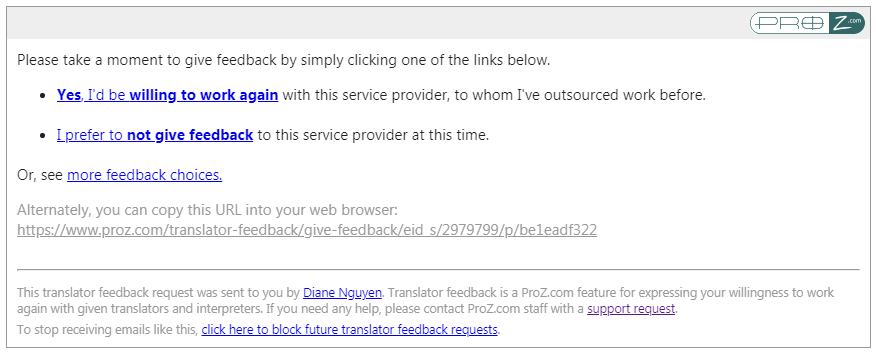
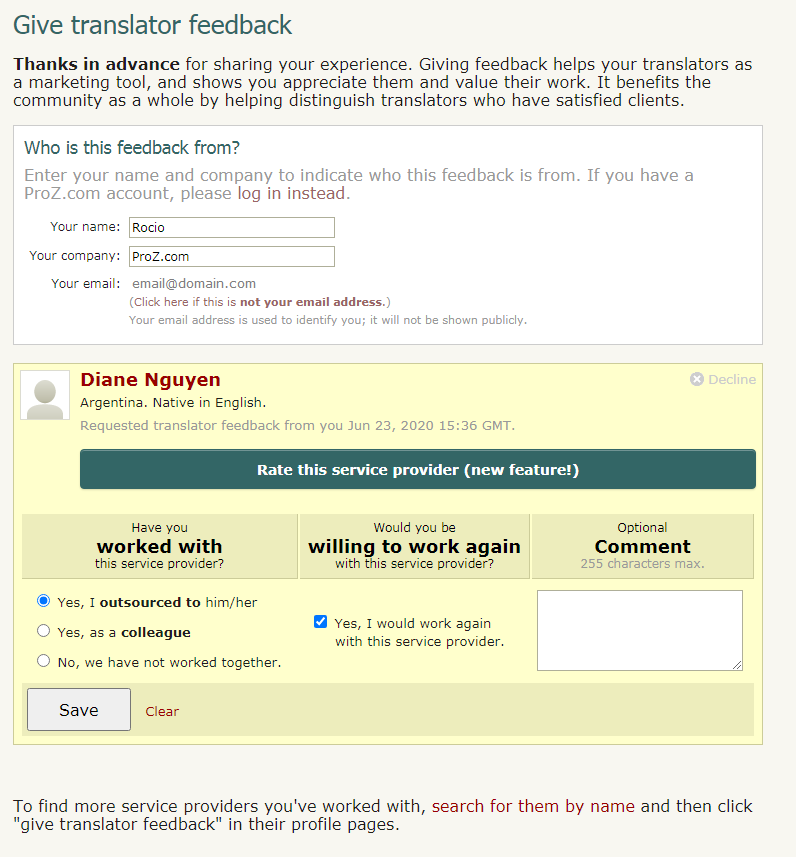
11.47 - Will banned outsources or those with open non-payment reports be permitted to leave WWA ratings? No. 11.48 - Will outsourcers be able to leave multiple WWA ratings? Outsourcers may leave one WWA rating per verifiable project. 11.49 - What if I disagree with a WWA Rating I have received? If a service provider feels a WWA rating violates the WWA ratings rules, they can open a support request. ProZ.com reserves the right to review WWA ratings on a case by case basis, and to remove any WWA rating or comment which may not conform to ProZ.com site rules & policies. 11.50 - I got a request for WWA feedback from a service provider via email, how do I provide it? At the end of the message sent by the service provider who worked with you, you will find a box with different options: The first option will allow you to provide feedback indicating that you are willing to work again with this service provider. The second option will provide you with the option to decline giving this service provider feedback at this time. And the option to see more feedback choices will allow you to choose if you want to rate this service provider. This option is only available to logged-in ProZ.com users, and if you are not logged in or do not have an account, the page will prompt you to log in or register (if you do not wish to create an account, you can still leave the translator WWA feedback without a rating). Regardless of the option chosen, the next screen will see the information below, with the selected option highlighted: In the first field you'll find your contact information as entered by the service provider. If you wish to change any of these contact details, you can do so here. In the second field, you'll find the following WWA feedback/rating options:
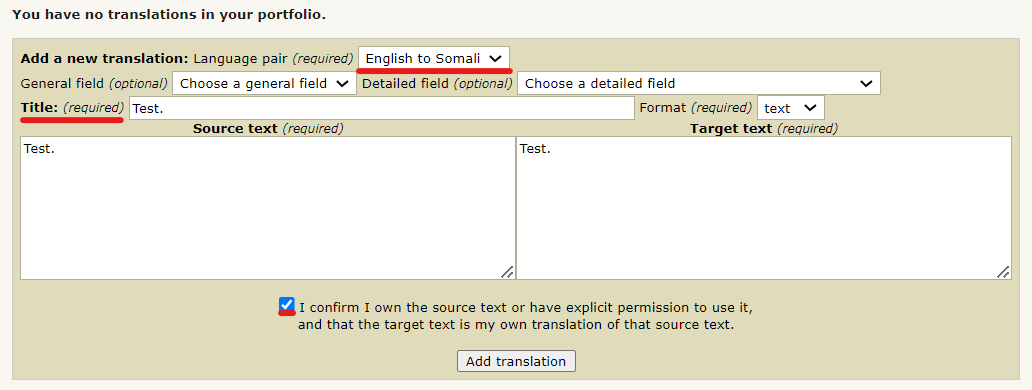
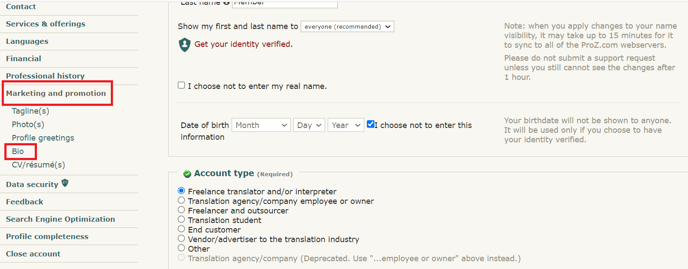
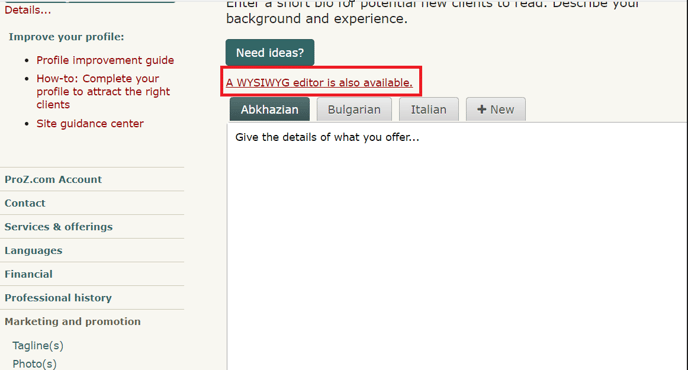
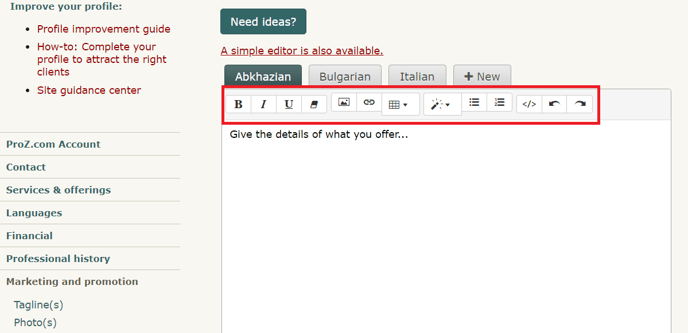
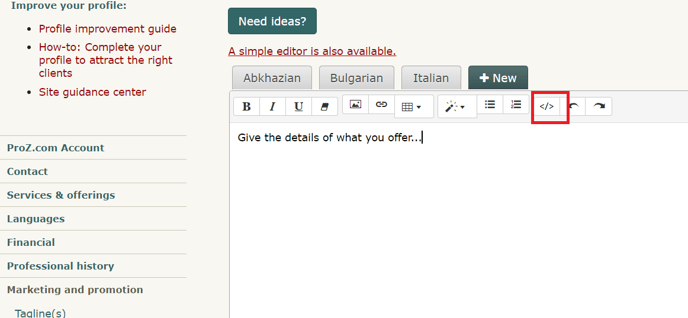
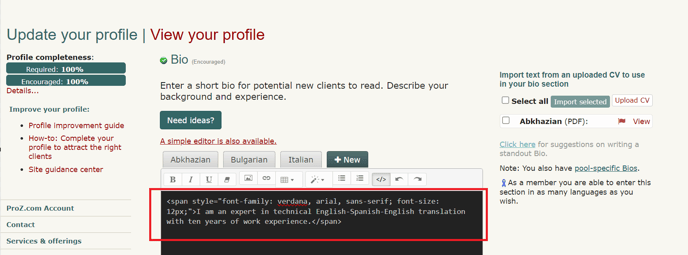
 12 - Portfolio: my sample translations 12.1 - How do I add sample translations to my Portfolio? Samples are really important, not just for profile completeness, but in order to show the quality of your work. 12.2 - How can I change the order of sample translations in my portfolio? The order of sample translations reported in profiles can be changed by selecting each sample in the list of samples in the Professional history section of the Profile updater and dragging them to the desired position, saving and updating changes after each movement by clicking on Save and update profile at the bottom of the page. 12.3 - Can I toggle the visibility of the samples in my portfolio? No. You can either choose to enter samples which will be publicly visible to visitors to your profile or choose not to enter these samples. For the latter option you can tick the box next to I choose not to enter any sample translations at this time in the Portfolio/Sample Translations in the Professional history section of your Profile updater. 12.4 - How can I respect confidentiality agreements with clients while showing sample translations in my portfolio? If a translation you have done is subject to a confidentiality agreement, avoid adding this translation to your portfolio and try adding a sample text taken from the web or elsewhere instead. Remember that sample texts do not need to be long, but that two or three paragraphs should be enough. 13 - Project History 13.1 - Что представляет собой система истории проектов на ProZ.com? Система истории проектов на ProZ.com предоставляет письменным и устным переводчикам удобное средство ведения учета выполненных проектов с сортировкой по языкам, тематикам и др. параметрам. С ее помощью вы можете организовать и упорядочить свои данные, вести учет оплаты и т.п. 13.2 - Кто может пользоваться системой истории проектов? Функции системы истории проектов полностью доступны всем пользователям сайта. 13.3 - How do I add a new project to my project history? To add a new project to your project history visit your Project history page. Select the Add a new project option from the menu to the left and you will be re-directed to the project form. Complete this form with all required information and click on Submit. 13.4 - Какие виды проектов могут быть отражены в списке? Пользуйтесь системой истории проектов для ведения учета выполненных лично вами проектов перевода или редактирования. 13.5 - Имеется ли возможность включения в перечень тех проектов, которые были выполнены для заказчиков, не зарегистрированных на ProZ.com? Да, Вы можете включать в перечень любой проект, независимо от того, каким образом Вы нашли заказчика и является ли он членом ProZ.com. 13.6 - Я/моя компания выполнили проект. Должен ли я включать его в перечень? Нет, Вы не должны включать в перечень проекты, выполненные Вами или Вашей компанией. Система истории проектов предназначена для ведения учета работы, выполненной переводчиком или редактором лично. 13.7 - Является ли моя история проектов закрытой? Да, по умолчанию вводимая в вашей истории проектов информация доступна для просмотра только вам. 13.8 - Я вижу истории проектов других пользователей. Почему так происходит? При желании можно размещать общую информацию об избранных проектах из истории проектов. На вашей профильной странице во вкладке "История проектов" появится обзор тех проектов, которые вы решите показать. Размещение проектов, характерных для вашей области специализации, может служить эффективным средством рекламы своих услуг. 13.9 - Я заметил, что в истории проектов других пользователей иногда указываются имена заказчиков. От чего зависит видимость имени заказчика? Имя заказчика указывается только в том случае, если обе стороны согласны открыто отобразить эту информацию. 13.10 - Что представляет собой подтверждение со стороны заказчика? При добавлении проекта вам предоставляется возможность запросить подтверждением заказчика. В этом случае заказчик может подтвердить, что проект действительный и соответствует вашему описанию. 13.11 - Как устроена система отзывов? При добавлении проекта есть также возможность запросить отзыв заказчика. Запрос предоставляет заказчику возможность охарактеризовать опыт сотрудничества с вами как положительный, нейтральный или отрицательный. Можно также добавить короткий (в одну строчку) комментарий. 13.12 - I sent a collaborator confirmation request and it seems it did not go through. What can I do? If you sent a collaborator confirmation request and your collaborator did not receive the email message requesting confirmation, try re-sending the request. To do so, click on Edit next to the project in the Project history page and enter your collaborator ID at the bottom of the project form. Re-send the invitation by clicking on Submit. 13.13 - Как моя история проектов влияет на мой рейтинг в базе данных? Когда заказчик ищет исполнителя в определенной языковой паре и тематике и находит ваше имя, он видит и количество ваших *подтвержденных* проектов в этой тематике. Ваше место в базе данных от этого не меняется. 13.14 - Как отображение избранных записей из моей истории проектов поможет мне в поиске новых заказчиков? Заказчикам важно знать, что у вас есть опыт в той языковой паре и тематике, в которой они ищут исполнителя. Указав на своей профильной странице ряд проектов, вы покажете потенциальным заказчикам характер вашего опыта и (по желанию) соответствие вашего опыта требованиям заказчиков, с которыми вы ранее сотрудничали. 13.15 - Могу ли я вести учет и показывать список лиц, которые сотрудничали со мной в моих проектах? Да. Если ваши коллеги зарегистрированы на ProZ.com (в качестве членов или как-либо иначе), вы можете для организационных целей связать их имена с участием в проекте. Вы можете также запросить подтверждение подробностей проекта и короткий (в одну строчку) отзыв, которые будут видны другим пользователям, если вы захотите, чтобы этот проект отображался на вашей профильной странице. 13.16 - Имею ли я возможность скрыть проект при получении отрицательного отзыва от работодателя? Нет. Передав проект на рассмотрение работодателю, Вы теряете возможность отредактировать, удалить или скрыть его. Возможность отредактировать, удалить или скрыть проект становится вновь доступной для Вас при получении положительного отзыва от работодателя. 13.17 - Заказчик дал мне отрицательный/нейтральный отзыв, имеется ли возможность удалить/изменить его? ProZ.com воздерживается от участия в конфликтах между переводчиками и их заказчиками по поводу истории проектов. 13.18 - Почему мне не удается удалить проект из списка моей истории проектов? Удалить проект, получивший нейтральный или отрицательный отзыв от работодателя, невозможно. Невозможно также удалить проект, ожидающий подтверждения. 13.19 - Мой заказчик не получал уведомления с предложением ознакомиться с моим проектом, может ли он каким-то образом просмотреть его? Если Ваш заказчик не получал уведомления с предложением ознакомиться с проектом, который Вы представили на рассмотрение, он все равно может оставить отзыв. Для этого ему нужно войти в свою учетную запись, для которой существует запись на доске отзывов Blue Board, и оставить отзыв для вас в Центре управления заказчика по адресу http://www.proz.com/?sp=jobs&sp_mode=occ&sp_mode_occ=feedback 13.20 - Должен ли я включать только крупные проекты? Нет, крупные проекты являются особенно значимыми, но описание небольших проектов в узкоспециализированных областях поможет уточнить Вашу квалификацию. 13.21 - Как мне вводить проекты, если моя работа конфиденциальна? Вам следует указывать лишь необходимую информацию. В большинстве случаев общего описания без раскрытия конфиденциальных деталей будет достаточно. Ниже Вы можете найти образец составления Истории проектов, включающий два проекта, описанных в общих чертах. В них не упоминаются имя заказчика, торговая марка или конкретные подробности; потенциальный заказчик получит представление о проектах, в которых Вы можете принимать участие. 13.22 - Что мне делать, если я не хочу обращаться к своему заказчику за подтверждением? Напоминаем, что данный инструмент предоставлен вам для использования в соответствии с вашими нуждами и предпочтениями. Вы можете как включать, так и не включать информацию о партнерах и заказчиках, и вам необязательно обращаться к ним за подтверждением. Можно даже скрыть свои проекты и использовать эту функцию только для внутренних административных целей. 13.23 - Я устный переводчик, а письменные переводы делаю редко (не делаю вообще). История проектов ко мне не применима. Как мне заполнить профиль? На странице "Добавить проект" среди пунктов ниспадающего меню есть устный перевод (хотя по умолчанию выбран письменный перевод), так что вы можете также добавить проект выполненного устного перевода, что поможет потенциальным заказчикам лучше представить себе характер вашей работы. 13.24 - Я не желаю сейчас вводить информацию об истории проектов. Как мне завершить составление учетной записи? Если вы выберете пункт "Сейчас я не собираюсь заполнять свою историю проектов", то с точки зрения полноты заполнения профиля соответствующее поле будет считаться заполненным. Учтите, что отказываясь добавлять историю проектов, вы тем самым пренебрегаете возможностью воспользоваться полезным средством маркетинга. 14 - CV/resumé 14.1 - How do I upload a CV/resume to my profile? You can upload a copy of your CV to your profile from the Personalization section of your Profile updater. Select the language in which your CV is written, then browse your computer files system for your CV file and click on Open. Then, check the box next to I understand that uploading my CV/resume and setting its visibility to "Everyone" will allow my CV to be indexed by search engines such as Google. If I remove my CV from my profile later, it may take some time for this indexed information to also be removed from search engine caches. if you understand and agree to these terms and have set visibility permissions for your file.
Please make sure your CV is in .txt, .pdf, .doc, .docx, .rtf, or .odt format, and is no larger than 2 MB. Also, note that ProZ.com uses multiple webservers to handle user traffic. So, it is possible that when you upload anything via the Profile updater, it may take several minutes to become visible. And, remember, you can upload your CV in different languages and file formats to make sure that all potential clients visiting your profile can download it in the format that is more convenient for them and view it in a language they manage. 14.2 - I uploaded an image/CV but it is not shown or can not be dowloaded. ProZ.com utilizes more than one web server. When you uploaded an image or a CV, it can take between several minutes and a half hour for the files to be copied to all the web servers. During this time, you may notice a blank where a photo should be, or, for CVs, you may get a page not found error. Please give it some time before submitting a support request. 14.3 - How do I update/edit/replace my present CV/resume? To update your CV, go to the Personalization section of your Profile updater and scroll down to the CV/Resume section. Click on Delete next to the CV you want to update. Once removed, upload the new version of your CV by selecting the language in which your CV is written from the Upload another CV in the drop-down menu and clicking on the Browse button to search your computer's file system for the document you wish to upload. 14.4 - How do I remove an old CV? To remove your CV, go to the CV/Resume section of your Profile updater and click on Delete next to the CV you want to delete. 14.5 - How can I delete my resume/CV/photo? In your profile page, go to Settings. In the menu, choose Uploads. There, you will find a check box with the title Delete current image or Delete current Resume/CV. After checking it, click on Submit. 14.6 - The CV/resume file I uploaded to my profile is accessible from outside ProZ.com When you upload a CV/resume file to your ProZ.com profile, you must assume that the information it contains will be visible on the web —and that your file may be downloaded by anyone— unless you set visibility permissions when uploading it (i.e. unless you specify that you do not want anyone, except for other ProZ.com members, to access your CV/resume file). 14.7 - I deleted my profile/CV but Google still shows it. You should ask Google to delete that information from their Cache. You can do it here. 15 - About me 15.1 - Can I use HTML code in the About me section of my profile? Yes. You can customize the About me section in your profiles by adding HTML code and some dynamic content such as instant messaging tools, clocks, hit counters, etc. Check the quick guide for creating ProZ profiles using HTML code tutorial to obtain some special effects. 15.2 - How can I localize the content of the About me section of my profile? You can localize the content of your About me and other profile areas through the Profile localization tab. You can also get to this page by clicking on Localize your content in the Settings tab of your profile. 15.3 - There are extra line breaks in my profile and I can not get rid of them. What should I do? Here is why: every line break entered in the profile background form gets converted into a br tag in the html. In order to prevent the large spaces, you can not enter line breaks (by hitting enter) after your td and tr tags. This is not pure HTML, and we did it so that those without HTML experience could make reasonable profiles. Sorry for causing this confusion. 15.4 - How can I edit the About Me section of my profile? To edit your About Me, head to your Profile updater, and, under Marketing and Promotion, click on Bio. Make sure to click on the Save button below the Bio editor before leaving the page. If you want to add colors, tables, or other rich format features that are not available in the WYSIWYG editor, you can edit the format manually using HTML code. To do this, click on "Code view" and edit the HTML source. After you have finished editing the HTML, go back to the rich text view by clicking the same button, and then save your changes. You can learn how to add colors, as well as other simple HTML attributes, with this HTML tutorial. You may check all steps via this video. 16 - Availability calendar 16.1 - What is the availability calendar? Your ProZ.com availability calendar lets you indicate to potential clients your approximate availability to take on new work. It is shown in your profile page and in various other places throughout the site. 16.2 - What is the value of indicating my availability? Outsourcers with urgent projects can search for those who have indicated they are immediately available for new work. Specifying that you are available helps you appear in these searches. On the other hand, if you are currently busy, indicating that you are not available can help prevent you from being contacted with such requests. It can also be helpful to give potential clients and collaborators a rough idea of what your upcoming schedule looks like. 16.3 - How can I specify my availability? Specify your availability in your availability calendar, reachable by clicking the small round availability indicator icon next to your name at the top of each page, or by clicking here. 16.4 - How is capacity used in the availability calendar? When you set your average sustainable capacity in words per day (WPD), your availability calendar will also automatically display approximately how many words you can process on any particular day. 16.5 - How are working hours used in the availability calendar? Your standard working hours and time zone are displayed at the top of your availability calendar, along with information about differences between your time zone and the person viewing your calendar. 16.6 - What is Availability remaining in current work day, and why is it different than the availability specified in my calendar? If the options Consider me unavailable outside of working hours or Consider me unavailable on weekends are selected in your calendar settings, your availability remaining in the current work day is automatically calculated, and shown above your availability calendar. For example, if you specified that you are 100% available today, and that you have a capacity of 3000 WPD, when your work day is half over your Availability remaining in current work day will indicate Partially available (1500 words). 17 - Profile tabs 17.1 - My Visitors tab 1.1 - What is the Visitors tab? The Visitors tab is for members only. The Visitors tab works like a hit counter, but does so much more than a traditional hit counter. The Visitors tab allows profile owners to keep track of how many hits they've received in the last 30 days, but it also provides information about who, what, where, and when their profile was visited. 1.2 - What are the options to display crawlers' visits at the Visitors tab? The Visitors tab provides the following options for site users to filter the crawlers' visits results:
These options displayed at the bottom of the Visitors tab. Also, users can hide visitors information by clicking on [ Hide this visitor ] in the Action column. To restore a hidden visitor's visibility click on List excluded visitors button (at the bottom of the page), find an IP of a hidden visitor you want to make visible again and click on [ Remove this visitor ]. 1.3 - Who has access to my Visitors tab? No one other than you (the owner) has access to your Visitors tab. 1.4 - Does the Visitors tab count my own visits? No. Presently, the Visitors page does not count your visits when you come to your profile page. 1.5 - Will anyone see my username or entity ID on their Visitors tab? The Visitors tab does not indicate who exactly visited your page by username or entity ID. Likewise, when you visit a user's profile, they will not be able to see your username or entity ID on their Visitors tab. The Visitors tab only displays the viewer type. Also, the Visitors tab will indicate whether the viewer is a site member (highlighted in blue), ID verified, and the viewer's location as indicated by their IP address. Finally, the Visitors tab will indicate where the viewer came from, tabs viewed, last time visited, and the total number of times the visitor has been to your profile page. 1.6 - Will anyone be able to link to my profile page from their Visitors tab? No. The owner will not be able to link to your profile page form their Visitors tab. The owner will only have access to your IP address's location. 1.7 - Someone is coming to my visitors tab multiple times, should I be worried? Those visits are probably coming primarily from a search engine crawler, which is what goes out and spiders the internet for pages to be searchable.The visitor you had those multiple visits from is actually MSN, Yahoo or Google. So basically, no need for alarm, a machine is visiting your profile numerous times, not a human. 1.8 - What does the checkmark under the viewer type signify? The checkmark under the viewer type signifies that visitor has been ID verified. Some of your visitors may or may not be ID verified; therefore, not all visitors will have checkmarks in that column. To find out more about getting ID verified, please read FAQ #8 in this section (Profile Page). 1.9 - What does it mean by Viewed? The Viewed column indicates which tabs the viewer clicked on in your profile, or in other words, pages viewed of your profile. Presently, only three or less tab visits will be shown in this column. 1.10 - What exactly does the Came From column identify? The Came From signifies what page the viewer used to locate your profile. Whether they searched you on Google or clicked on your featured pro profile from the homepage, you'll see it under this column. 1.11 - How do I add a hit counter to my profile page? There are many sites that offer hit counter code that you can put into your profile page to track and display how many people visit you. 17.2 - Custom tabs 2.1 - What are custom tabs? Custom tabs are extra tabs users and members can add to their profiles to provide additional information. Site members can add up to 3 extra custom tabs while non-members can add only one. 2.2 - Why should I consider adding a custom tab? Custom tabs can be a good way of providing more or specialized information about your services or qualifications as a language professional. 2.3 - How do I add a custom tab to my profile? To add a custom tab to your profile, head to the Custom tabs section of your profile from the Settings tab of your profile. 2.4 - How do I change the name of a custom tab? You can edit a custom tab name any time you want, by going back in to the Custom tabs section of your profile from the Settings tab; and clicking on the edit icon next to the tab name you want to change. 2.5 - How do I add an image to a customised tab on my profile? To show an image in a custom tab (a scanned copy of a certificate, a photo, etc.), first you will have to upload the image to an image hosting website such as http://www.imagehosting.com/ or http://imageshack.us/. 2.6 - How do I remove a custom tab? To remove a custom tab you have created, go to the Custom tabs section of your profile from the Settings tab and click on the small x next to the title of the tab you want to remove. 18 - ProZ.com Wallet
18.1 - What is my ProZ.com wallet for? Your ProZ.com wallet is used to track payments you have made for items and services purchased through the site. Your wallet is not intended as a payment method or for use in transferring funds from one account to another. 18.2 - Каким образом я могу получать платежи через страницу своего профиля на ProZ.com? К сожалению, функция «Платежи» ProZ.com (в верхнем правом углу на странице Профиля) более не доступна. 18.3 - Какова величина комиссионных платежей за пользование "Кошельком" на ProZ.com? В большинстве случаев величина комиссионных ProZ.com составляет 5 % в дополнение к сумме комиссионных платежей, взимаемых организацией, осуществляющей перевод средств (это могут быть например, 5,5 % от суммы транзакции, взимаемые организацией-эмитентом вашей кредитной карты, или комиссионный сбор в размере $35, взимаемый банком при телеграфном переводе средств и т.д.) Мы снимаем 5 % только один раз при осуществлении транзакции; когда Вы «забираете» деньги из бумажника, эти 5 % не списываются. 18.4 - How can I make a wallet deposit? To make a wallet deposit start here (or click on Add Money to your Wallet in your profile wallet). Then, click on the amount you would like to deposit ($20 USD, $30 USD or $60 USD) and you will arrive at the purchase wizard. Enter your billing information and select a payment method for your deposit. 18.5 - Когда суммы комиссионных платежей списываются с суммы, лежащей в Кошельке? Вы можете в любое время оформить заявку на списание средств из кошелька, однако списание обычно происходит в конце месяца. Если вы желаете проверить статус платежа, отправьте запрос о помощи в службу поддержки. 18.6 - What are the fees associated with wallet withdrawals? ProZ.com does not charge a fee for processing wallet withdrawals, but you are responsible for paying any third-party transaction fees. Because some withdrawal methods incur higher transaction costs, those methods require a minimum withdrawal amount in order to cover the transaction costs.
18.7 - How can I use funds received for Turn-key translations? Funds received in your wallet for Turn-key translations function as regular wallet deposits. This means that they can be used towards your purchase of ProZ.com membership. They can also be withdrawn from your wallet. 19 - Dynamic profile content 19.1 - Why might some ProZ.com profiles include user-supplied dynamic content (javascript)? Some users have chosen to customize their ProZ.com profiles with dynamic content such as instant messaging tools, clocks, hit counters, etc. This dynamic content may be implemented in a scripting language such as javascript, which can be run by the viewer's web browser. 19.2 - What are the risks of accepting dynamic content (i.e. running javascript) from a profile owner? Although such content is common on the internet and is likely harmless, there is a possibility that security risks may be involved. For example, a cross-site scripting attack might allow the profile owner to gain unauthorized access to the viewer's ProZ.com account. (See this cross-site scripting article on Wikipedia for details.) 19.3 - How is dynamic profile content handled by ProZ.com? If a ProZ.com profile contains dynamic content, a notice is shown at the upper-right of the page, indicating whether the dynamic content is enabled or disabled. 19.4 - How can I control whether dynamic content is enabled when I view a profile? If the profile owner is a ProZ.com member, the first time you view the profile you'll be prompted whether to enable the dynamic content. Your preference will be stored in a cookie in your web browser, so you won't be prompted again when viewing that member's profile in that browser. If you later wish to change your preference, and enable or disable the content, click the Settings link in the dynamic content notice at the upper right of the page. 19.5 - How can I add my instant messenger status to my profile? You can show your instant messenger status in your profile without including customized javascript. Go to the Contact tab of your Profile updater to edit the instant messenger settings. If your instant messenger program isn't supported on that page, submit a support request to have it added to the list. 19.6 - How can I include my Twitter feed in my profile? You can include your Twitter feed in your profile from the Contact tab of your Profile updater. Just click on the Social networks (LinkedIn, Twitter, Facebook) tab and enter the necessary information. 19.7 - How can I include a hit counter and visitor analysis in my profile without customized javascript? ProZ.com members have access to a profile hit counter and visitor analysis tool. See the Visitors tab on your profile page. 19.8 - Can I include CSS in my profile? ProZ.com still doesn't allow CSS and Javascript code use in profiles. 19.9 - Are iframes considered dynamic content? Yes, iframes are also considered dynamic content, and are handled the same way as javascript. 20 - Profile referrals 20.1 - What are profile referrals? Profile referrals are member sources that are crosslinked to your profile and shown at the bottom right corner of your main profile page. 20.2 - What are the benefits of showing referrals in my profile? Profile crosslinking / member referrals allow you to exchange links with ProZ.com members working in other languages or fields, whose work you know to be of a high standard. This could work to your benefit as it would shows you as part of the ProZ.com community, sharing with other professionals. 20.3 - How do I enter referrals in my profile? You can enter referrals from your Referrals page or by clicking on Referrals under the Settings tab in your profile. Simply enter another member's ID in the Add new referral box en then click on Select. This will allow you top chose a field and a language pair for which the other member can be a reference and a comment. Once you click on Save, the referral will show in the Referrals section of your profile page. 20.4 - How can I delete or hide a referral? You can hide or delete a referral by clicking on Hide this referral or Delete this referral in your Referrals page. 21 - | Request help Site documentation The member services and support team  Jared  Lucia  Helen  Yana  Karen  Evelio  Hayjor Roca  Andrea  Naiara Solano  Joseph Oyange  Isabella Capuselli  Saint Machiste  Valentin Zaninelli  Laura Rucci  Erika Melchor  Charlotte Gathoni  Agostina Menghini  Tanya Quintery  Benedict Ouma  Ana Moirano  Isabel Thomson |
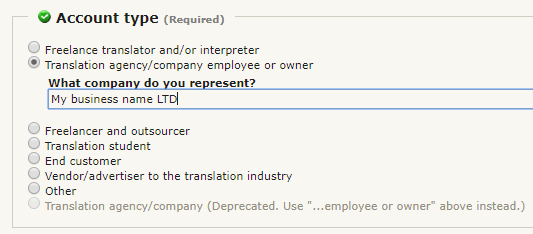
 icon usually shown below or next to the profile feature. This will directly take you to the section you would like to update.
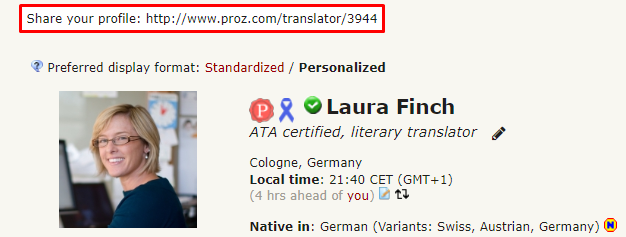
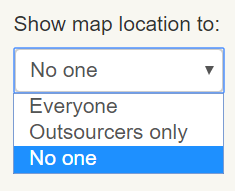

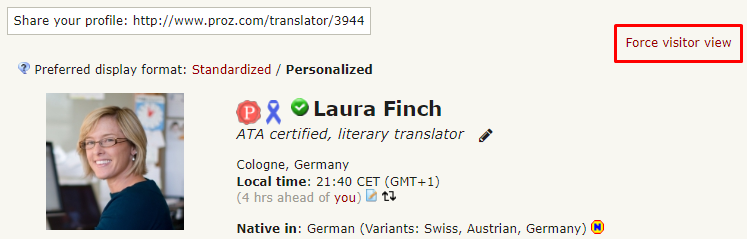
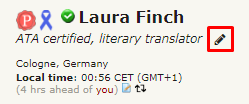


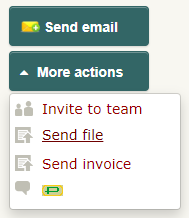
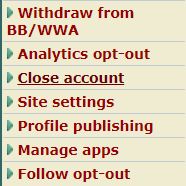
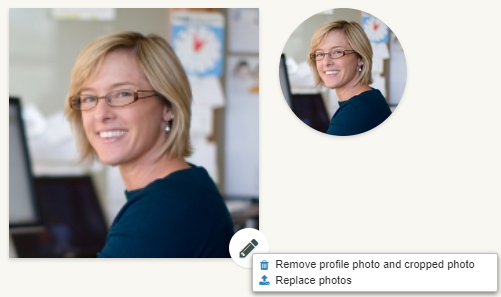

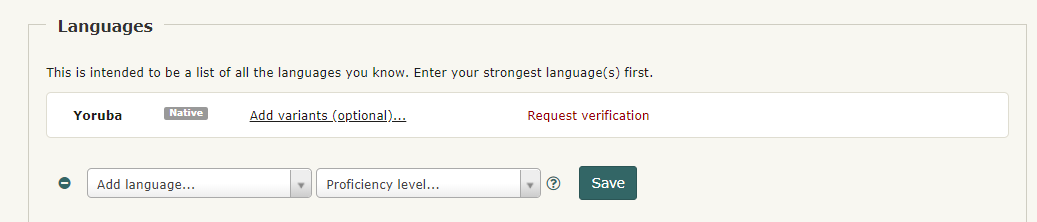
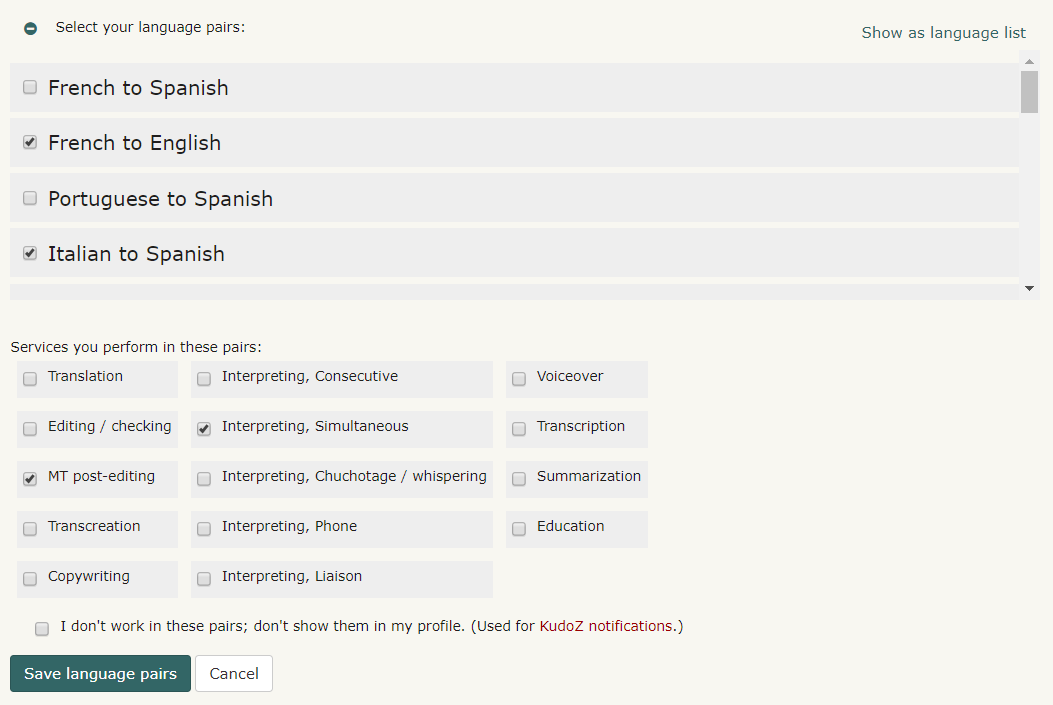

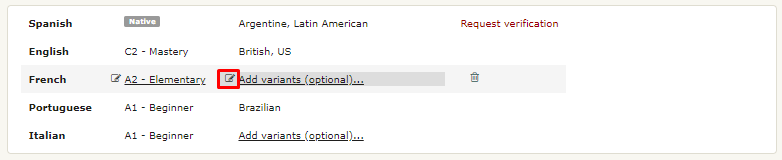
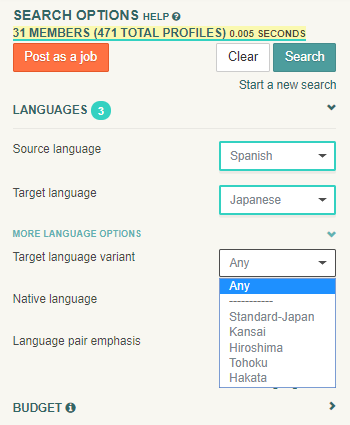
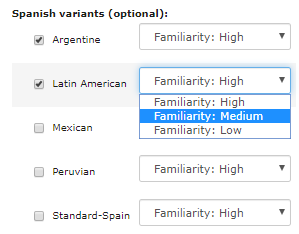

 используется, чтобы представить родные языки, степень владения которыми подтверждена с помощью приводимой в действие сообществом системы
  используется, чтобы представить родные языки, указанные пользователем, степень владения которыми не была подтверждена с помощью приводимой в действие сообществом системы